
ProTee VX: A Complete Guide to Using the ProTee VX Launch Monitor
If you're building a serious home golf simulator, the launch monitor is arguably the most important part of the entire setup. It needs to capture your golf shot quickly and accurately, provide useful data and, ideally, work seamlessly with your preferred golf simulation software.
The ProTee VX Launch Monitor is designed specifically for this type of setup. With its ceiling-mounted dual-camera system, full club and ball data, rapid shot feedback and compatibility with GSPro, it offers a powerful solution for golfers who want both realistic simulation and meaningful practice.
In this guide, we'll take a closer look at the ProTee VX with GSPro, including how to connect the two systems, what the GSPro driving range is like, how on-course practice works and what it's like to play some of the world's most famous golf courses.
What Is the ProTee VX Launch Monitor?
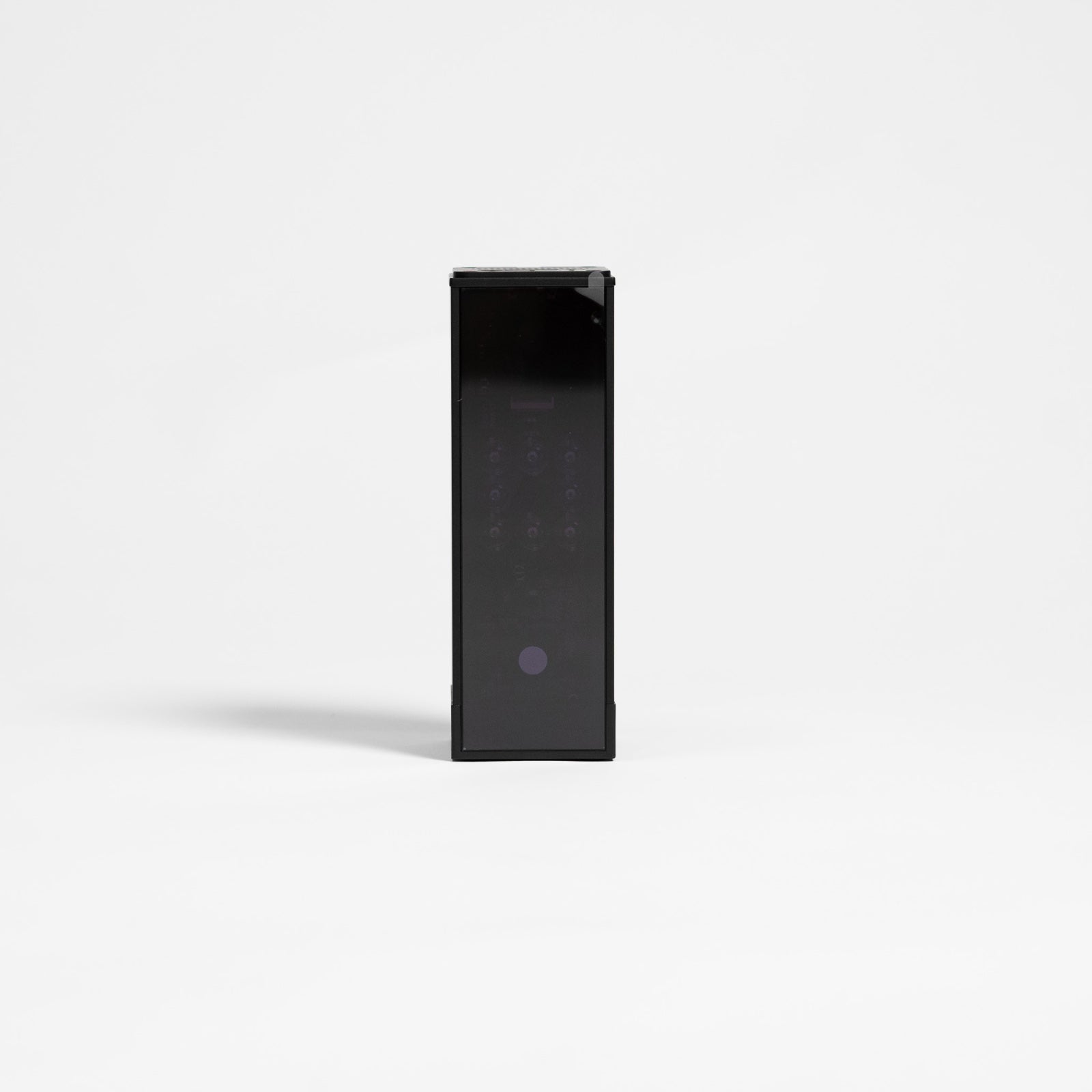
The ProTee VX is a ceiling-mounted golf launch monitor that uses dual high-speed cameras and AI-powered processing to capture both ball and club data.
Unlike launch monitors that sit on the floor or require special stickers or marked golf balls, the ProTee VX is mounted overhead and uses its camera system to track the club and ball.
The system captures a wide range of information, including:
Ball Data
Ball speed
Total spin
Spin axis
Backspin and sidespin
Launch angle
Launch direction
Club Data
Club speed
Club path
Face angle
Face-to-path
Attack angle
Dynamic loft
Lie
Vertical impact location
Horizontal impact location
Flight Data
Carry distance
Total distance
Apex height
Apex time
Offline distance
Air time
Run-out
Descent angle
That combination of data makes the ProTee VX suitable for more than simply playing golf on a simulator. You can also use it for structured practice, club gapping, dispersion work and swing analysis.
See the ProTee VX for Yourself
If you're considering adding one to your home golf simulator, you can find the current GolfBays package here:
Shop the ProTee VX Launch Monitor at GolfBays
The current GolfBays package includes the ProTee VX, two high-speed slow-motion cameras and GSPro compatibility.
How to Connect the ProTee VX to GSPro
One of the biggest attractions of the ProTee VX is its ability to work with third-party golf simulator software such as GSPro.
If you're using the ProTee VX with GSPro for the first time, the connection process is straightforward.
Step 1: Open ProTee Labs
First, open the ProTee Labs software installed on your computer.
You'll want to make sure your computer is connected to the internet before launching the software.
ProTee Labs gives you access to a range of features, including your swing data, practice range, data displays, swing video and other analysis tools.
The software is included with the ProTee VX and provides practice and analysis features without a recurring software fee.
Once ProTee Labs is open, you can minimise it and leave it running in the background.
Step 2: Open GSPro Launcher
Next, open the GSPro Launcher.
Once GSPro loads, you'll be able to select your display resolution and graphics settings.
Choose the resolution that best suits your simulator screen or projector.
If your computer is powerful enough, you can also increase the graphics quality to make the virtual courses look as realistic as possible.
Once your settings are ready, select Play.
GSPro will then load into the main software.
Step 3: Connect the ProTee VX to GSPro
Once GSPro has loaded, return to ProTee Labs.
Go to:
Settings → Game Options → Game
You'll see a selection of compatible golf simulator platforms.
Select GSPro from the list and then select Connect.
Once the connection has been established, the indicator at the top of ProTee Labs will turn green.
This confirms that your ProTee VX is connected to GSPro and ready to send shot data into the simulator.
When you've finished your session, remember to disconnect the ProTee VX from GSPro after closing the game.
Using the ProTee VX on the GSPro Driving Range
Once your ProTee VX and GSPro are connected, the driving range is a great place to start.
GSPro provides several practice options, including:
Driving Range
On-Course Practice
Custom Skills Test
Standard Skills Test
Operation 36
The driving range gives you a simple environment where you can focus on your golf swing and shot data without worrying about playing a full hole.
Fast Shot Feedback
One of the first things you'll notice when using the ProTee VX with GSPro is how quickly the system responds to a shot.
Strike the golf ball and your shot information appears almost immediately, followed by the virtual ball flight and tracer.
That quick feedback is particularly useful when you're working through a practice session.
There's no need to stand around waiting for the simulator to process each shot. You can hit, analyse the result and get straight into your next shot.
Practise Your Golf Dispersion with ProTee VX and GSPro
The GSPro driving range is also useful if you're trying to improve your dispersion.
You can select a club, choose a target distance and hit a series of shots while monitoring the results.
For example, you might select a 7-iron and set a target around 185 yards away.
You can then work on:
Carry distance
Shot direction
Dispersion
Launch
Spin
Club path
Face angle
Attack angle
Instead of simply hitting balls without a purpose, you can turn your simulator into a structured practice environment.
This can be particularly useful for golfers working with a coach or anyone trying to understand their club performance more effectively.
The ProTee VX also includes features within ProTee Labs such as dispersion circles, bag mapping, wedge matrix tools, statistics and swing video, giving you plenty of options for more detailed practice and analysis.
ProTee VX On-Course Practice with GSPro
The driving range isn't the only way to practise.
GSPro's On-Course Practice mode allows you to select individual holes and practise your shots in a realistic golf course environment.
This is one of the features that makes GSPro particularly enjoyable with the ProTee VX.
Rather than hitting the same range shot repeatedly, you can put yourself into specific on-course situations.
You might practise:
Tee shots
Approach shots
Short game
Different yardages
Difficult lies
Risk-and-reward shots
Specific holes you're preparing to play
You also get the course environment and visual information you'd expect from a full golf simulator.
Practise the Famous 16th Hole at TPC Scottsdale
One of the best examples of GSPro's immersive course experience is the famous 16th hole at TPC Scottsdale.
The short par 3 is one of the most recognisable holes in professional golf, thanks in part to the enormous stadium-style atmosphere created around the hole during the WM Phoenix Open.
On GSPro, you can practise the hole virtually while still receiving your ProTee VX shot data.
You can see the target, assess the distance and then hit your shot just as you would on the course.
And if you hit the green, you'll even get the virtual crowd reaction.
It's these small details that make simulator golf feel less like hitting balls indoors and more like actually playing golf.
Play Golf Courses Around the World with GSPro
Of course, you don't have to limit yourself to practice.
If you want to play a full round, GSPro provides access to a huge selection of virtual golf courses.
From the GSPro menu, select Local Match and you'll be able to browse the courses installed on your system.
Depending on your GSPro setup, you'll find a selection of courses available to play, with additional courses available to download.
This opens up an enormous amount of variety.
You can practise at a familiar course one day and then play a completely different venue the next.
For golfers who enjoy travelling and playing different courses, it's one of the biggest advantages of having a golf simulator at home.
Playing TPC Sawgrass on the ProTee VX
For our test, we decided to play TPC Sawgrass, home of the famous 17th hole.
The first thing that stands out is how much more engaging the round becomes when you're playing a realistic virtual course.
You're no longer simply hitting balls into a generic range.
You have to think about where you're going to hit your tee shot, what club you're going to use for your approach and where you want the ball to finish.
The virtual course also gives you realistic slopes and hazards to consider.
And while the simulator can't quite recreate the pressure of standing over a real shot at TPC Sawgrass, it certainly does a good job of making you think twice before pulling the trigger.
What About Putting on GSPro?
Putting is one area where simulator golfers tend to have different preferences.
Some players enjoy manually putting every shot.
Others would rather get through a round quickly and concentrate on full shots.
GSPro gives you options.
You can use an Auto Putt setting or use a gimme system for shorter putts, depending on how you want to play.
For a quick practice round, Auto Putt can make a lot of sense.
If you're looking for a more complete simulation experience, you can choose settings that require you to deal with more of the putting yourself.
The flexibility means you can tailor GSPro to the way you actually want to use your simulator.
Why Use the ProTee VX with GSPro?
There are several reasons why the ProTee VX and GSPro make such a compelling combination.
1. Fast Shot Feedback
The ProTee VX provides rapid feedback after every shot.
This is important for both practice and simulation because it keeps the experience feeling responsive.
2. Detailed Club and Ball Data
The VX doesn't just tell you where the ball went.
It provides detailed information about both the ball and club, including club speed, path, face angle, attack angle, launch information, spin and distance.
That means you can use your simulator to understand your golf game rather than simply play virtual golf.
3. Ceiling-Mounted Design
The ProTee VX is mounted above the hitting area.
This keeps the launch monitor away from the floor and means you don't have to position a portable unit beside the ball every time you want to play.
It's also designed to work with both right- and left-handed players without requiring the unit to be reconfigured between shots.
4. No Special Golf Balls or Club Stickers
The VX uses its camera system and AI-powered club recognition, so you don't need specially marked golf balls or stickers on your clubs.
That means you can simply use your normal golf equipment.
5. GSPro Compatibility
If realistic golf simulation is important to you, GSPro compatibility is a major advantage.
You can use the ProTee VX for practice and analysis in ProTee Labs and then connect it to GSPro for full-course simulation.
The current GolfBays ProTee VX package specifically lists GSPro compatibility.
ProTee Labs: More Than Just a Launch Monitor
Although GSPro is one of the main reasons golfers choose the ProTee VX, the included ProTee Labs software is worth highlighting.
ProTee Labs provides a dedicated environment for practice and analysis.
Features include:
Practice range
Dispersion circles
Bag mapping
Wedge matrix
Statistics
Swing video
Data overlays
Dual-screen displays
The software is included with the VX and uses a perpetual licence, meaning there isn't a recurring fee for the ProTee Labs software itself.
This makes the ProTee VX useful even when you aren't playing a simulated round.
What Computer Do You Need for the ProTee VX and GSPro?
If you're building a ProTee VX simulator specifically for use with golf simulation software, your computer needs to be powerful enough to run the software and render the virtual golf courses.
GolfBays currently lists the following minimum requirements for the ProTee VX:
64-bit Windows 10
Intel Core i7-8xxx at 3.00GHz or AMD equivalent
8GB RAM
NVIDIA RTX 3060 or Radeon equivalent
Broadband internet connection
5GB available storage
For gaming and golf simulation software, GolfBays recommends a more powerful specification, including:
Windows 10 or 11 64-bit
Intel Core i9-9xxx at 3.00GHz or greater or AMD Ryzen 9
16GB RAM or more
NVIDIA RTX 3080 or better / Radeon RX 6800XT
DirectX 12
Broadband internet
30GB available storage
If you're buying a complete simulator setup, it's worth making sure your PC specification is suitable for the software and graphics settings you intend to use.
What Space Do You Need for a ProTee VX Golf Simulator?
Your launch monitor is only one part of the equation when building a home golf simulator.
You'll also need enough room to swing comfortably and safely.
GolfBays recommends, for comfortable swings with any club:
Height: Minimum 2.8m, ideally 3m
Width: Minimum 3m
Depth: Around 4.5m for photometric systems
Your exact requirements will depend on your swing, room layout, screen position and simulator configuration.
If you're unsure whether your room is suitable, it's worth getting advice before purchasing the rest of your simulator equipment.
Is the ProTee VX Good for Golf Practice?
Yes.
One of the biggest advantages of the ProTee VX is that you're not limited to playing simulated golf.
The combination of launch monitor data and ProTee Labs gives you the ability to work on your actual golf game.
You can use it to practise:
Distance Control
Find out how far you actually carry each club and build a more accurate set of yardages.
Dispersion
Hit multiple shots with the same club and see where your shots are finishing.
Wedge Gapping
Use the wedge matrix features to understand how your different wedge swings translate into distance.
Club Delivery
Analyse information such as club path, face angle, attack angle and dynamic loft.
Swing Video
Review your swing alongside the shot data to better understand the relationship between your swing and ball flight.
This makes the ProTee VX much more than a gaming accessory.
It's a genuine practice tool that can be used throughout the year, regardless of the weather outside.
Is the ProTee VX Good for a Home Golf Simulator?
For golfers who have the available space and budget, the ProTee VX is a compelling option for a premium home golf simulator.
Its ceiling-mounted design keeps the launch monitor out of the way, while its camera-based tracking provides detailed club and ball information.
Add GSPro into the equation and you can move between serious practice and full rounds of virtual golf whenever you want.
The result is a simulator that can serve multiple purposes:
Practice → Coaching → Club Gapping → Game Improvement → Virtual Golf → Entertainment
That versatility is one of the biggest reasons to consider a system such as the ProTee VX.
ProTee VX and GSPro: Our Verdict
After using the ProTee VX with GSPro, it's easy to see why the combination is appealing to golfers building a premium simulator.
The ProTee VX Launch Monitor provides fast shot feedback and detailed club and ball data, while GSPro adds realistic virtual golf courses and a range of practice options.
For golfers who want to work on their game, the data available through the VX provides plenty to analyse.
For golfers who simply want to play golf at home, GSPro provides an engaging virtual experience with a huge variety of courses and practice options.
And for anyone who wants both, the combination of the two gives you the best of both worlds.
The standout feature for us is the speed of the feedback. Strike the golf ball and you get your result almost immediately, which keeps the session feeling natural and responsive.
Ready to Buy the ProTee VX?
If you're considering a ProTee VX golf simulator, you can see the current GolfBays package and full specifications below.
Shop the ProTee VX Launch Monitor at GolfBays
The current package includes the ProTee VX Launch Monitor, two high-speed slow-motion cameras and GSPro compatibility. GolfBays also lists ProTee Labs as included with the VX.
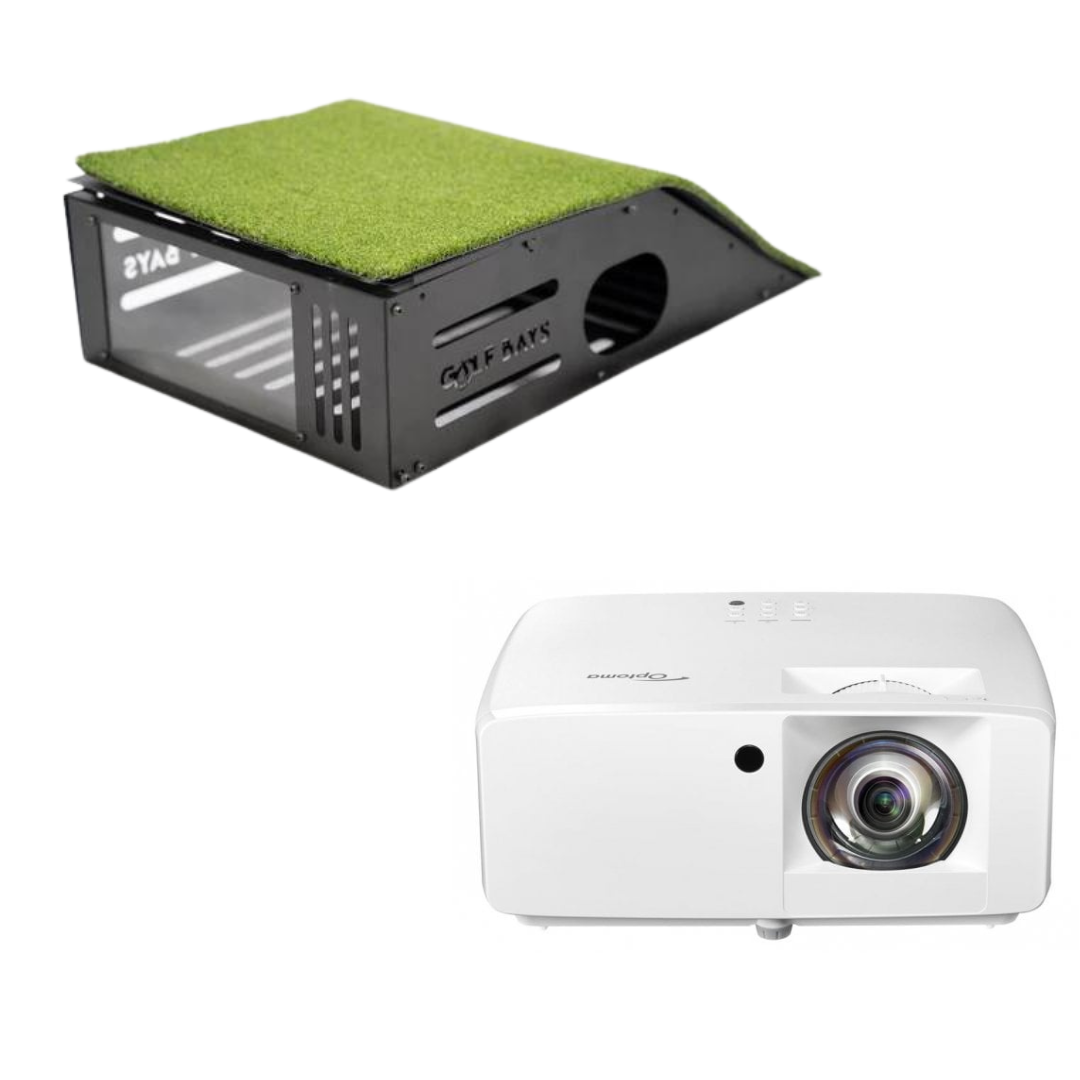
If you're building a complete home golf simulator, the ProTee VX can form the heart of the system, with your enclosure, impact screen, projector, hitting mat and gaming PC completing the setup.
Want to see what the ProTee VX can do? Explore the ProTee VX at GolfBays today.
View the ProTee VX Launch Monitor →
Frequently Asked Questions
Is the ProTee VX compatible with GSPro?
Yes. The ProTee VX is compatible with GSPro and can send its launch monitor data into the golf simulation software. The current GolfBays package specifically includes GSPro compatibility.
How do you connect the ProTee VX to GSPro?
Open ProTee Labs, launch GSPro and then select Settings → Game Options → Game within ProTee Labs. Select GSPro and connect the launch monitor. A green connection indicator confirms that the VX is connected.
Does the ProTee VX measure club data?
Yes. The ProTee VX captures club information including club speed, club path, face angle, face-to-path, attack angle, dynamic loft, lie and impact location.
Does the ProTee VX measure ball data?
Yes. The VX captures ball speed, spin, spin axis, launch angle and launch direction, as well as flight information such as carry, total distance, apex and offline distance.
Does the ProTee VX need special golf balls?
No. The VX uses its camera system and AI-powered club recognition, so the GolfBays product information states that specially marked balls and club stickers aren't required.
Can left-handed and right-handed golfers use the ProTee VX?
Yes. Because the ProTee VX is ceiling mounted, it supports both right-handed and left-handed players without requiring the unit to be reconfigured.
Does ProTee VX come with software?
Yes. ProTee Labs is included with the ProTee VX and provides practice, analysis, swing video, data overlays and other features.
What golf simulator software works with the ProTee VX?
The ProTee VX integrates with major golf simulator platforms, including GSPro, TGC 2019 and E6 Connect, according to the current GolfBays product information.
Can you play golf courses with the ProTee VX?
Yes. When connected to compatible golf simulator software such as GSPro, the ProTee VX can be used to play virtual golf courses as well as practice individual holes and shots.
Is the ProTee VX suitable for a home golf simulator?
Yes. Its ceiling-mounted design makes it particularly well suited to permanent home simulator installations. You'll need sufficient room height, width and depth to swing comfortably and safely.